X (Twitter) — Own API Keys
Connect with your own X Developer App
X (Twitter) requires each user to provide their own API credentials to connect. By creating your own X Developer App, you get dedicated rate limits and full control over your API access.
Step 1: Open the X Developer Portal
Go to developer.x.com and sign in with your X account. In the left sidebar, click Apps. If you already have an existing app you want to use, skip to Step 3. Otherwise, click Create App to create a new one.
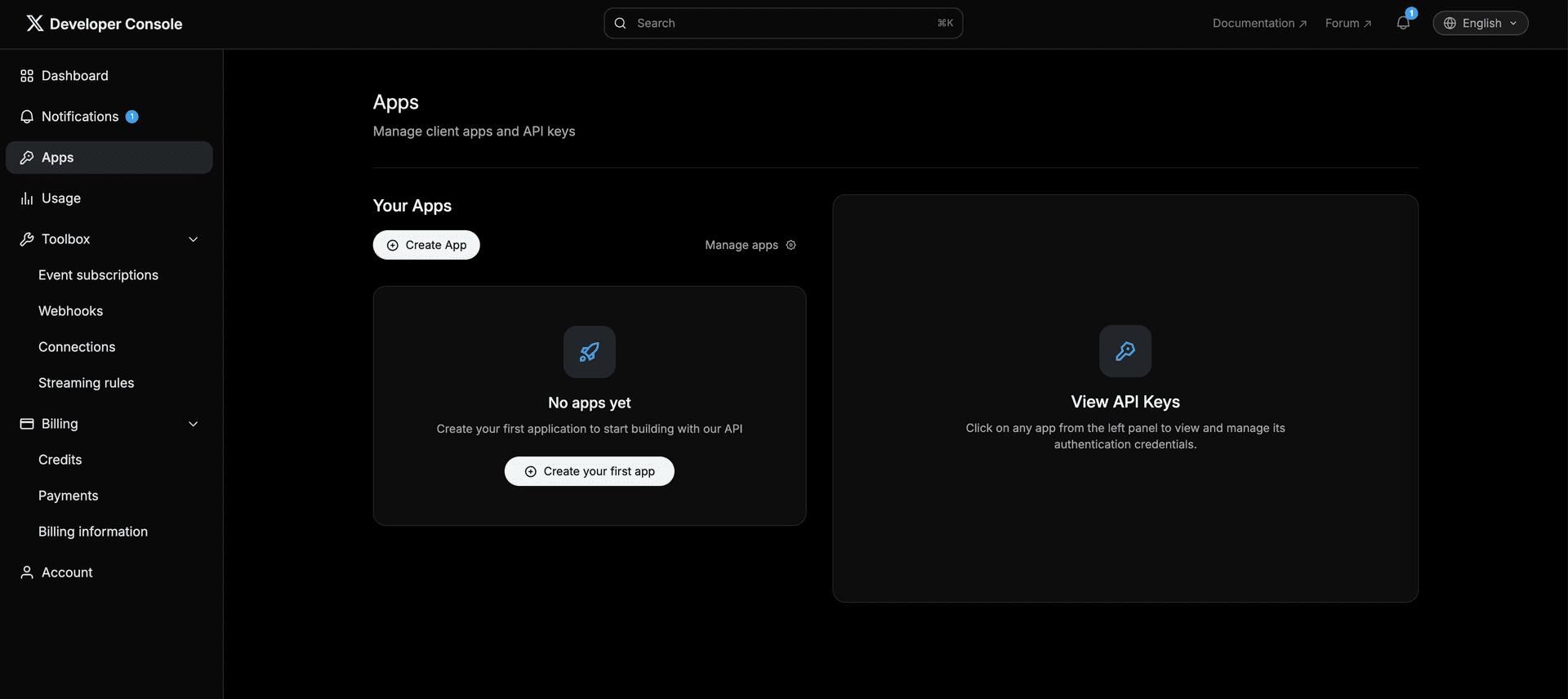
Step 2: Create a New Application
In the Create New Client Application dialog, enter a name for your app (e.g. "CodivUpload" or any name you prefer). Select Development as the environment. Then click Create New Client Application to confirm.
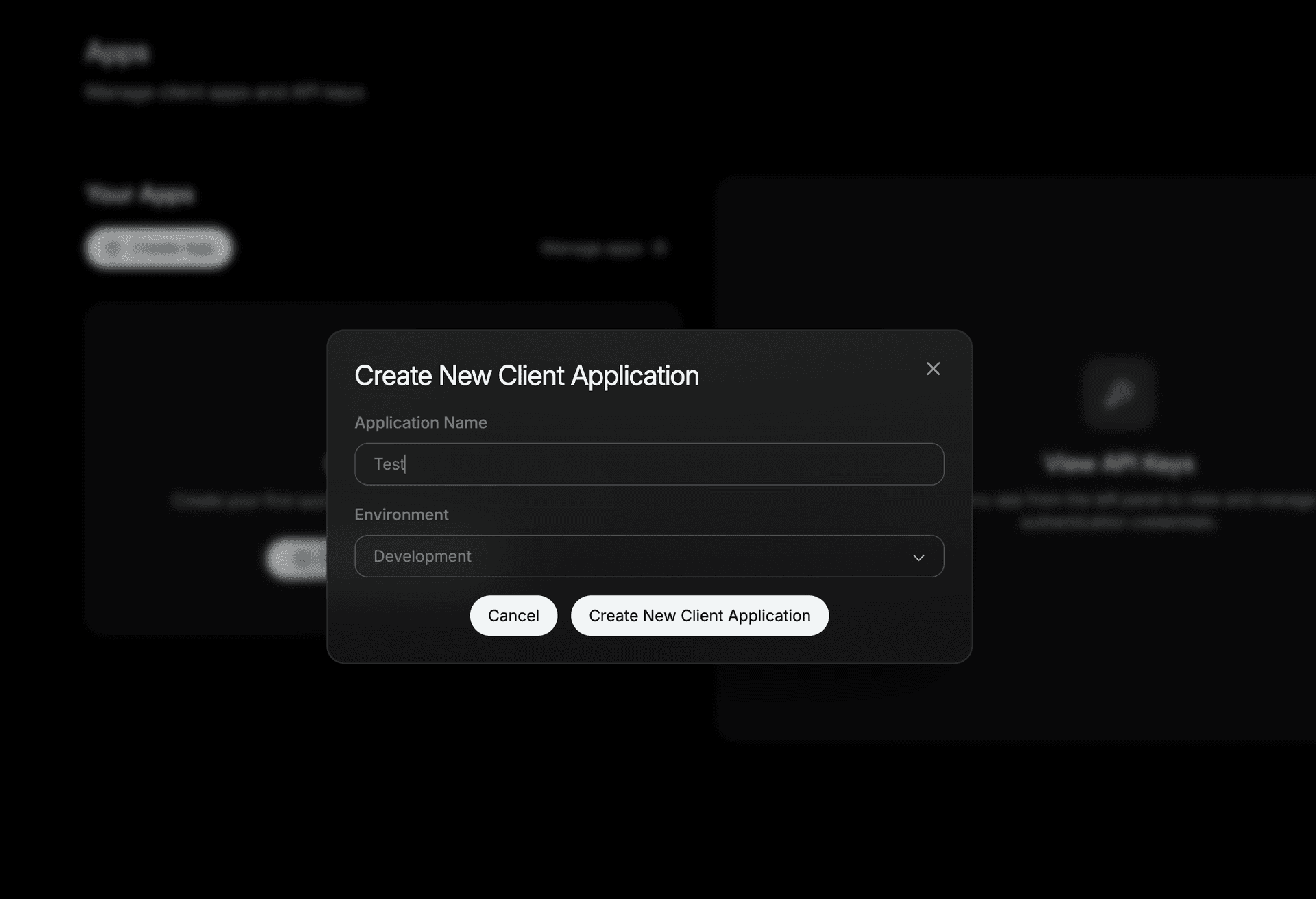
Step 3: Open Authentication Settings
After creating the app, the page may not refresh automatically — if your app doesn't appear in the sidebar, do a manual page refresh. Once visible, click on your app name in the left panel. In the details pane on the right, scroll down to User authentication settings and click Set up.
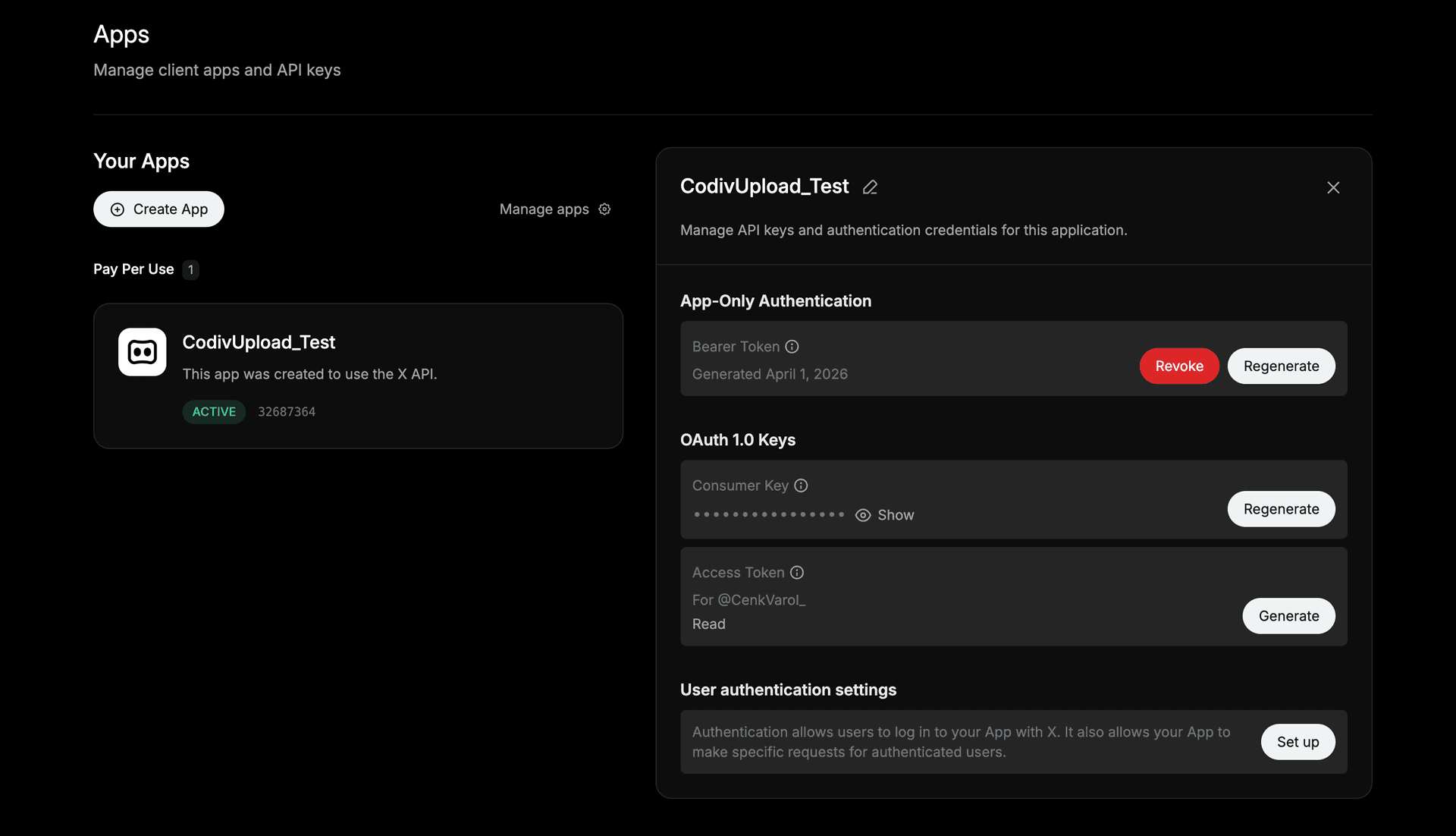
Step 4: Configure Permissions & App Type
On the Authentication settings page, configure the following:
- App permissions: Select Read and write — this allows CodivUpload to post on your behalf
- Type of App: Select Web App, Automated App or Bot (Confidential client) — this is required for server-side OAuth 2.0 with a Client Secret
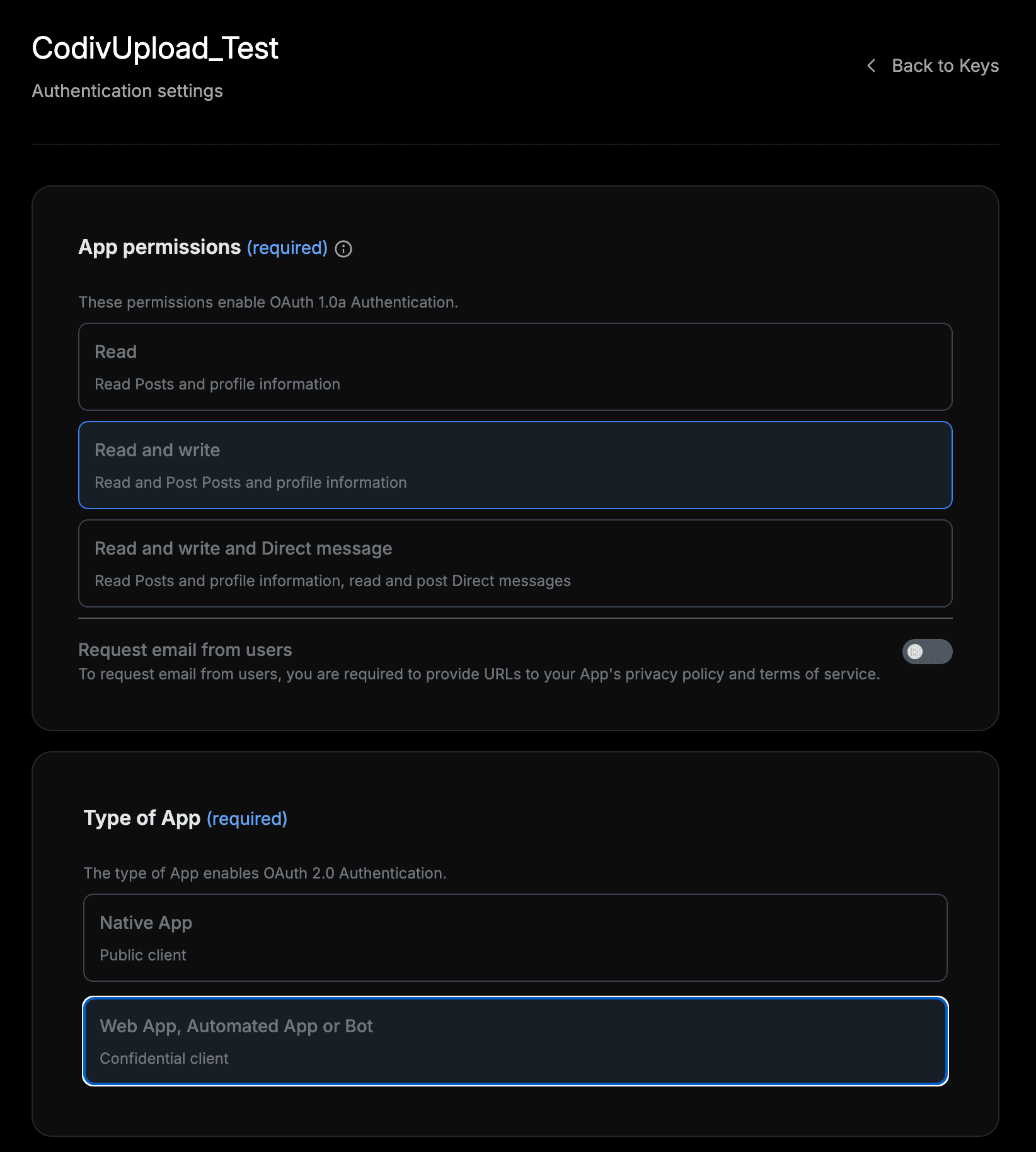
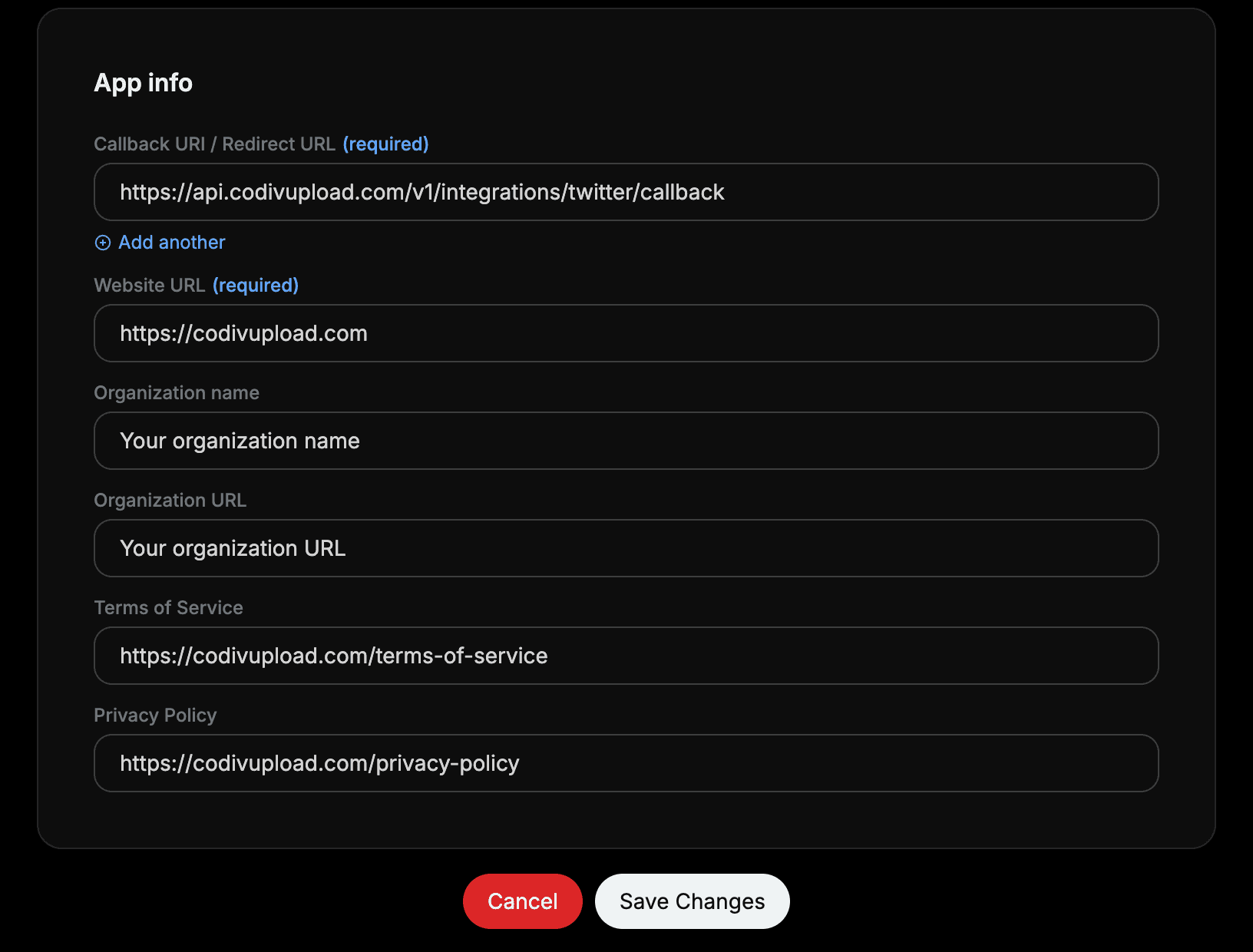
Step 5: Fill in App Info
Complete the required fields in the App info section:
| Field | Value |
|---|---|
| Callback URI / Redirect URL | https://api.codivupload.com/v1/integrations/twitter/callback |
| Website URL | https://codivupload.com |
| Organization name | Your organization name |
| Organization URL | Your organization URL |
| Terms of Service | https://codivupload.com/terms-of-service |
| Privacy Policy | https://codivupload.com/privacy-policy |
Once all fields are filled in, click Save Changes.
Step 6: Copy Your Credentials
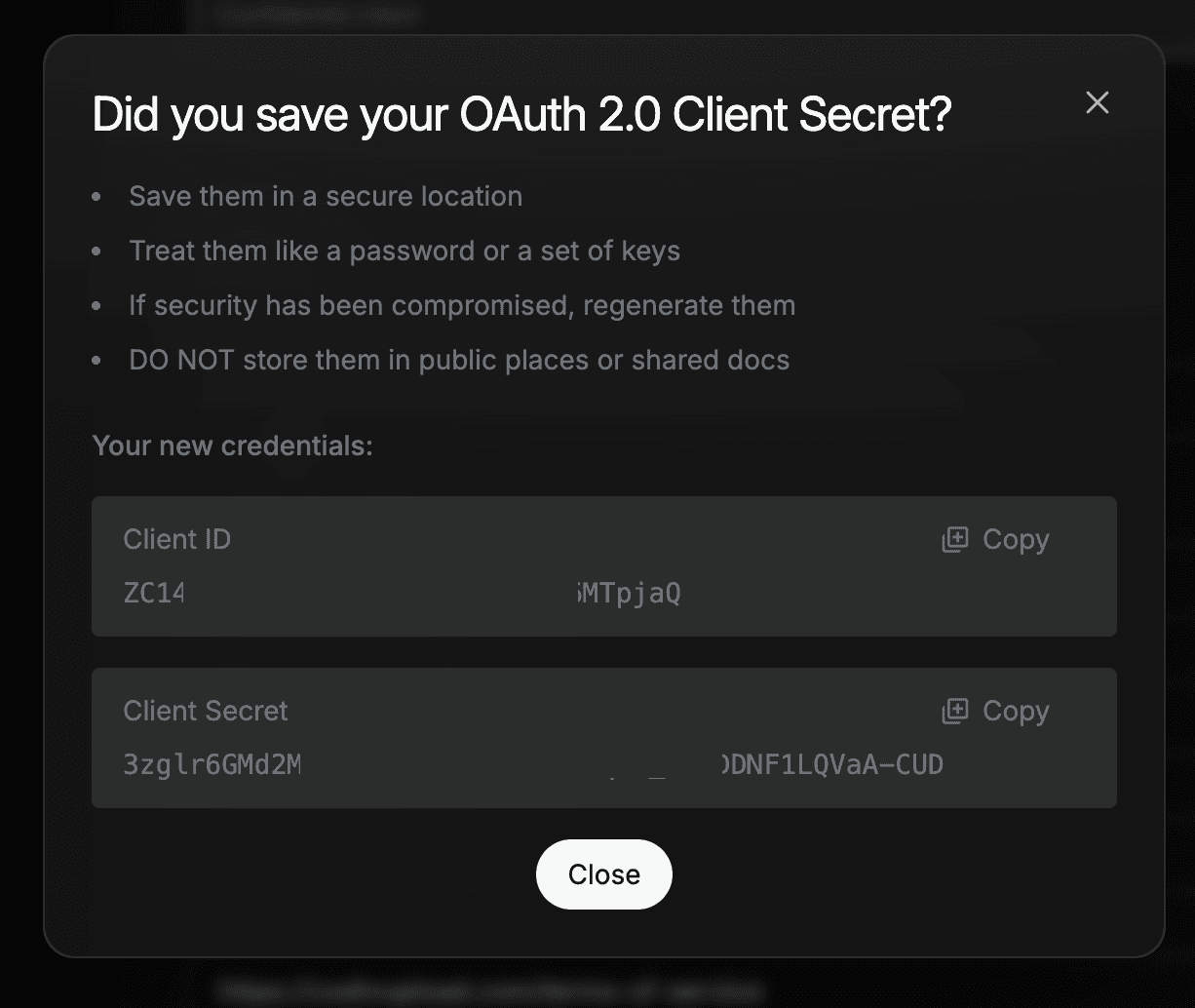
After saving, X will display your OAuth 2.0 Client ID and Client Secret. Copy both values — you will need them in the next step.
Connect in CodivUpload
- Go to Profiles → click X (Twitter)
- Check "Use my own X API credentials"
- Paste your Client ID and Client Secret
- Click Continue → authorize with your X account
Security & Data Usage
Your API credentials are encrypted using AES-256-GCM before being stored. They are only used to initiate the OAuth authorization flow on your behalf and are never exposed, logged, or shared with third parties. You can disconnect and remove your credentials at any time from the Profiles page.